7 Best Fixes for LED Lights Not Connecting?

Time:2026-09-26 Author:Liam
0%

When LED lights refuse to join a smart home, the cause is often small: a 2.4 GHz Wi-Fi mismatch, a forgotten pairing mode, or a weak signal behind a wall. The app may keep searching while the bulbs blink across the room. Frustrating, yes. But the failure does not automatically mean the lights are defective.

Why can't I get my LED lights to connect to my smart home system? This guide covers seven practical fixes, from checking network settings to resetting the bulbs and updating the app. Smart-home analyst Michael Wolf has written about connected-home technology, but I could not verify a direct quote from him about this exact problem. Rather than invent one, here is the practical principle: “Check the network path before replacing the device.” That is an editorial summary, not a quotation attributed to Wolf.

Expect a little trial and error. A router may combine network bands under one name, while an older bulb expects a separate 2.4 GHz connection. A hub may also sit too far from the lights, or a setup step may be easy to miss. Start with the simple checks, change one thing at a time, and note what works. These steps cannot resolve every hardware fault, but they can help identify where the connection breaks.
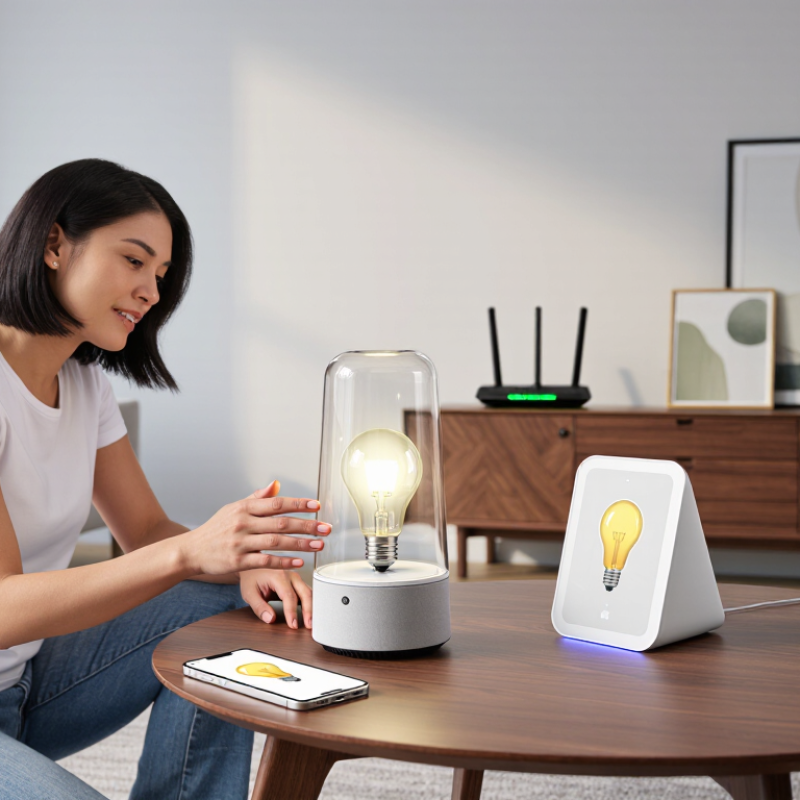
7 Best Fixes for LED Lights Not Connecting?

Identify the LED Light’s Connection Type and Compatibility

A reliable fix starts with identifying how the LED light connects. Check the controller, cable, and product label before changing settings. The light may use Wi-Fi, Bluetooth, an infrared remote, or a separate hub. These connection types are not interchangeable. For example, a Wi-Fi light may require a 2.4 GHz network, while a Bluetooth model pairs directly with a nearby phone. A remote-controlled strip may not connect to an app at all. It is easy to blame the network too soon; I would check the connection type first.

Tips: Match the light’s voltage and connector to its power supply and controller. Look for small labels such as “5 V” or “12 V.” Confirm that the app or hub supports the light’s connection method. Keep your phone close during Bluetooth pairing, and make sure the light is in pairing mode. Some reset steps vary, so check the product instructions before holding a button.

If the connection still fails, note what happens: Does the light turn on? Does it appear in the app? Does pairing stop at a specific step? Those details help narrow the cause. Also check whether the router separates 2.4 GHz and 5 GHz networks. A compatible light may fail to join the wrong band. Compatibility can be less obvious than it looks.

Check Power, Wi-Fi, Bluetooth, and App Permissions

7 Best Fixes for LED Lights Not Connecting?

A dead connection can begin with an ordinary power problem. Check the wall switch, plug, adapter, and any inline controller; a loose connector can look perfectly fine. Check the light’s manual before resetting it, since reset steps vary. Not glamorous, but worth checking. IoT Analytics’ State of IoT—Summer 2024 report estimated 16.6 billion connected IoT devices in 2023 and forecast 18.8 billion by the end of 2024. That growth means home networks handle many device types, but it does not guarantee every light supports every network setup.

Many LED lights require a 2.4 GHz Wi-Fi network. Confirm your phone and light are using the expected network, and move the light closer to the router during setup. Guest networks or router settings that isolate devices can block communication. Bluetooth pairing may also need to be enabled, with the light in pairing mode and nearby. Check the app’s permissions: depending on the phone and operating system, it may need access to nearby devices or the local network. Permission labels can be confusing; I would check them before reinstalling the app. Update the app, restart the light and phone, then try pairing again.

Restart the Lights, Router, and Mobile Device

Switch the LED lights off at the wall for about 10 seconds, then turn them back on. Avoid rapid repeated switching; some lights use power cycles to enter setup mode. Next, unplug the router for 30 seconds. Reconnect it and allow several minutes for Wi-Fi to return. Wait until other devices can browse normally before testing the lights again. Small timing details matter.

The 2018–2023 Annual Internet Report forecast 3.6 networked devices and connections per person globally by 2023, compared with 2.4 in 2018. That growth helps explain why a router can become a temporary bottleneck, though it does not prove congestion is causing this fault. Restart your mobile device after the router reconnects, then reopen the lighting app and try pairing again. It sounds almost too simple. Still, this clears stale connections without erasing settings. If the lights remain offline, note which step changed anything; troubleshooting can be messy, and repeating every reset blindly may waste time.

7 Best Fixes for LED Lights Not Connecting? — Restart the Lights, Router, and Mobile Device

Fix What to do Why it may help What to check
1. Restart the LED lights Turn the lights off using their normal power control, wait about 10 seconds, then turn them back on. Follow the product instructions if a specific reset sequence is required. A fresh power cycle can clear a temporary connection or startup issue. Wait for the lights to finish starting up, then try connecting again.
2. Restart the router Restart the router using its power control or instructions. Allow it to finish reconnecting to the internet and restore the Wi-Fi network before testing the lights. This can refresh the wireless network and clear a temporary router problem. Confirm that the phone and lights are using the intended Wi-Fi network.
3. Restart the mobile device Close the lighting app, restart the phone or tablet, and reopen the app once the device is back online. Restarting can resolve temporary app, operating-system, or wireless-service issues. Check that the app can access the local network and Bluetooth if the setup process requires them.
4. Check Wi-Fi compatibility Review the light’s setup instructions to confirm which Wi-Fi bands and network settings it supports. Connect the mobile device to the compatible network during setup. Some connected lights support only particular Wi-Fi bands or security settings. Verify the network name and password, and check whether the router’s security settings match the product requirements.
5. Improve signal strength Move the light or router closer together temporarily, and avoid placing the light behind large objects or inside a metal enclosure during setup. Distance and physical obstacles can weaken wireless signals and interrupt pairing. Try setup again from a location with a stable Wi-Fi signal.
6. Refresh the app and device setup Check for an app update, reopen the app, and follow its current add-device instructions. Remove an incomplete device entry only if the app provides that option. An outdated app or unfinished setup record can prevent a new connection attempt. Keep the app open during setup and follow any on-screen pairing prompts.
7. Reset and pair again If the other steps do not work, use the reset procedure specified in the light’s instructions, then add it again in the app. A reset can clear saved network details that no longer match the current Wi-Fi setup. Resetting may erase existing settings; reconnect the light to the intended network afterward.

Reset the Lights and Pair Them Again

When an LED light will not connect, reset the light itself before changing router settings. Switch it off, wait about ten seconds, then follow the manufacturer’s documented reset sequence; methods differ between models. A factory reset may erase schedules and room assignments, so check what will be lost. I sometimes rush this step. That can leave the light in its old pairing state.

After resetting, open the control app and start pairing again with your phone close to the light. Add one light at a time, and confirm the phone is connected to the required Wi-Fi band; many smart lights require 2.4 GHz. Keep Bluetooth and local-network permissions enabled if the app requests them. Parks Associates reported that 45% of U.S. internet households owned at least one smart-home device in 2023, showing how common setup tasks have become. Still, more devices do not make every setup routine obvious. If pairing fails, restart the light and app, then try again before resetting the router. Check the light’s status indicator, too; a slow blink may signal pairing mode, while no blink can mean the reset did not register. One small annoyance: indicator patterns are not consistent across products.

Update Firmware or Replace a Faulty Controller

When LED lights stop connecting, check the controller’s firmware before replacing hardware. An outdated version may fail to communicate with a newer app or network setting. Open the lighting app and look for a controller update; keep the lights powered and the phone nearby during installation. Then restart the controller and try pairing again. A brief pause helps. Do not interrupt power mid-update, since that can leave the controller unresponsive.

IoT Analytics reported 18.8 billion connected IoT devices worldwide at the end of 2024, up 13% year over year in its State of IoT 2024 report. That figure does not prove network congestion is causing a lighting fault, but it makes checking local network conditions sensible. Confirm the router band matches the controller’s requirements, and move the controller away from metal cabinets or crowded power strips. If the firmware is current but pairing still fails, inspect its status light and power connection. A repeated reboot, unusual heat, or failure to enter pairing mode can point to a faulty controller. This test is not perfect. If another compatible controller works with the same lights and network, replacement is a reasonable next step; otherwise, check wiring and compatibility before buying parts.

FAQS

Why is my LED light not connecting at all?

Check the wall switch, plug, adapter, and inline controller. A loose connector may look secure. Power problems are easy to miss.

Which Wi-Fi network should I use during setup?

Many LED lights require a 2.4 GHz Wi-Fi network. Confirm your phone and light use the expected network. Move the light near the router.

Can a guest network prevent pairing?

Yes. Guest networks or device-isolation settings may block communication. Try the main home network instead. Distance also matters.

What permissions does the control app need?

The app may need nearby-device or local-network access. Check permissions before reinstalling it. Permission labels can be confusing.

Should I restart the light, router, and phone?

Turn the light off for about ten seconds, then turn it on. Unplug the router for thirty seconds. Wait several minutes before reconnecting.

How can I reset the LED light safely?

Follow the reset sequence in the light’s manual. Reset methods differ between models. A factory reset may erase schedules and room assignments.

What should I do after resetting the light?

Keep your phone close to the light and pair one light at a time. Enable Bluetooth and local-network permissions when requested. Try again slowly.

What does the light’s blinking pattern mean?

A slow blink may indicate pairing mode. No blink may mean the reset failed. Indicator patterns are inconsistent, so check the manual.

What if the light still stays offline?

Update the app, restart the light and phone, then try pairing again. Note which step changes anything. Repeating every reset blindly wastes time.

Conclusion

When LED lights will not connect, start by identifying how they communicate—through Wi-Fi, Bluetooth, or another connection type—and make sure the lights, controller, and smart home system are compatible. Then check the basics: confirm the lights have power, your network is working, Bluetooth is enabled if needed, and the control app has the permissions it requires. These simple checks can explain many connection problems before you try more involved fixes.

If the lights still will not pair, restart them, your router, and your mobile device, then try connecting again. You can also reset the lights and follow the pairing steps from the beginning. If the issue continues, check whether a firmware update is available or consider replacing a faulty controller. Asking “Why can't I get my LED lights to connect to my smart home system?” is a useful starting point: work through compatibility, settings, restarts, pairing, and hardware in order to identify the cause.

Liam

Liam

Liam is a dedicated marketing professional with a profound expertise in the industry, where he excels at highlighting the unique advantages of our core products. With a keen understanding of market trends and consumer needs, Liam frequently updates our company’s professional blog, providing......